
CapCut vs iMovie vs DaVinci Resolve for football video
CapCut vs iMovie vs DaVinci Resolve for a football highlight video: an honest comparison of who each editor suits, what it costs in time, and what to watch for.
You filmed the match. Now you need to turn it into a short video. The question is which editor to use. Here is CapCut vs iMovie vs DaVinci Resolve for a football highlight video, written for a parent who has an evening, not a week.
What does a football highlight video need from an editor?
Less than you think. Before you compare tools, check that the editor can do these six things:
- Cut a clip at the exact moment the play starts and ends.
- Join clips in order.
- Add music and lower it so it does not drown the video.
- Add a short title with the player's name, number and team.
- Zoom in a little, so the player is easy to find.
- Export in the shape you need (wide for a coach, vertical for Instagram or TikTok).
All three editors below do this. The difference is the time it takes you.
CapCut vs iMovie vs DaVinci Resolve: comparison
| CapCut | iMovie | DaVinci Resolve | |
|---|---|---|---|
| Works on | Phone, web, computer | iPhone, iPad, Mac only | Windows, Mac, Linux |
| Free version | Yes, with a paid tier | Yes | Yes, with a paid Studio version |
| Time to learn | An evening | An evening | Several evenings |
| Vertical video | Easy | Limited | Yes, with some setup |
| Fine control of timing and colour | Basic | Basic | Very strong |
| Needs a strong computer | No | No | Yes, for smooth playback |
Features and prices change. Check each site before you commit. Most comparisons online come from software makers or affiliate blogs, so treat any "winner" claim with care.
CapCut suits you if you edit on your phone and want vertical clips for social media. It has templates, music and captions built in. Read its current terms on free exports and watermarks.
iMovie suits you if you already own an Apple device and want something plain that works. You cut, add music, add a title, and export.
DaVinci Resolve suits you if you like to learn software, have a decent computer, and want full control of timing, colour and sound.
Which one should a parent pick?
Start from what you have:
- Only a phone: CapCut.
- iPhone and Mac: iMovie first. Move on only if it stops you.
- A PC or Mac and time to learn: DaVinci Resolve.
If you already know one editor, use it. A video made this week in a tool you know is worth more than a better video in a tool you never finish learning.
How do you make a highlight video that works, in any editor?
The editor matters less than the choices. Keep these rules:
- Start with your player's best play, not a title card.
- Cut each play to the action. A few seconds of run-up is enough.
- Mark your player in the first frames of each play, so a coach does not have to search. Our guide on what scouts look for explains why.
- Keep the length tight. See how long a performance video should be.
- Keep music quiet. Coaches want to hear and see the game.
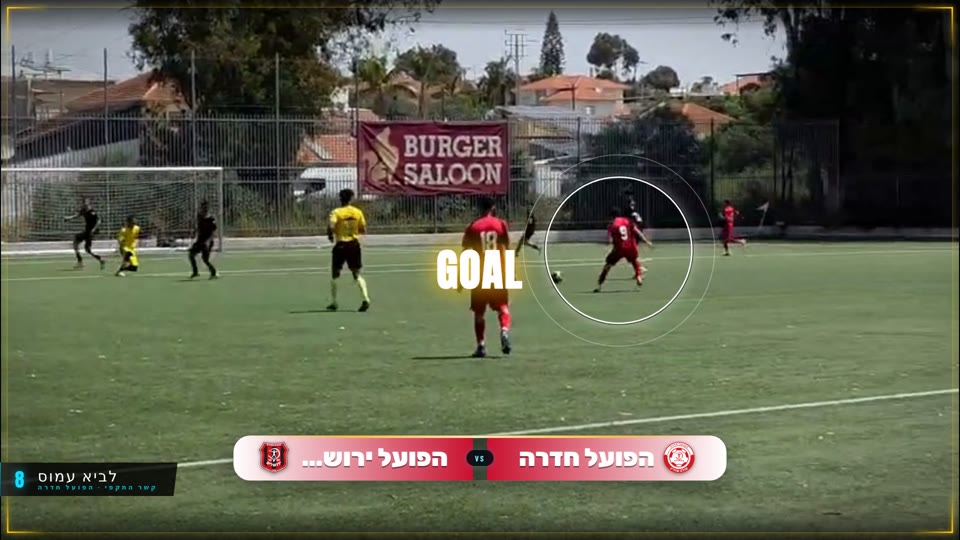
Marking the player is the slow part in every editor. You add a circle or arrow to each play by hand.
Is there a faster way than editing by hand?
There are other routes. A video editor, or a freelancer, can do it for you. Platforms like Hudl and Veo are built for teams that record every match with their own camera.
KICKO is one more option, for a parent who already has the plays from one game. You upload them, tap your player at the start of each play, fill in a player card, pick music, watch a preview, and pay once. You get the performance video, plus three vertical reels for Instagram and TikTok made from the same plays. If you enjoy editing or want full control, an editor is the better fit.
Questions parents ask
Is free software good enough?
Yes. A coach watches the plays, not the software. Clear footage, sensible cuts and a short length matter more than effects.
Can I edit on my phone?
Yes. CapCut and iMovie both run on a phone. It is slower for fine cuts, but fine for a short video.
Should I make a wide video or a vertical one?
Wide for coaches and academies, who watch on a computer. Vertical for Instagram and TikTok. If you share a child's video publicly, think about privacy first and check who can see it.